




Uploading themes/plugins on wordpress is very easy , Let us help you if you have new on wordpress
Uploading themes/plugins on wordpress is very easy , Let us help you if you have new on wordpress
Sometimes you may get some errors while installing theme, importing content, or activating plugins like white screen or PHP errors. They may be caused by low PHP configurations limits. In this case, you need to increase some values. You can do this on your own or contact your hosting provider with the following requirements:
For Example
memory_limit 256M
post_max_size 64M
upload_max_filesize 64M
max_execution_time 180
max_input_vars 10000
To begin, log in to your WordPress account.
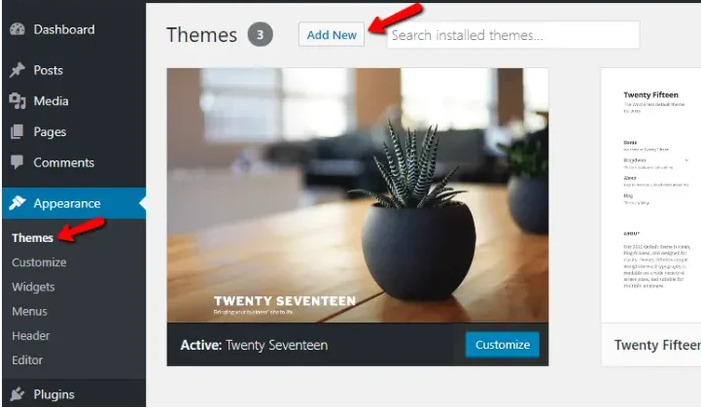
On the menu on the left side of the dashboard, hover your mouse over Appearance, and select Themes within that option box.
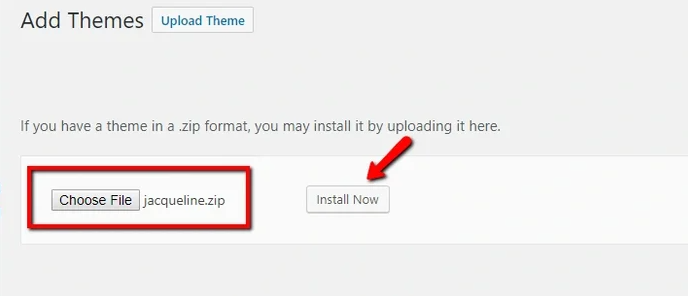
After selecting Upload Theme, click Choose File. Select the theme .zip folder you’ve downloaded, then click Install Now.
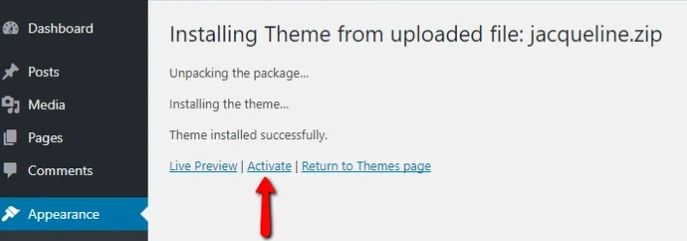
After clicking Install, a message will appear that the theme installation was successful. Click Activate to make the theme live on your website.
Manually Updatding themes/plugins on wordpress is very easy , Let us help you if you have new on wordpress
Lots of Backup plugin available on market place , But Updraft Plus is best one...
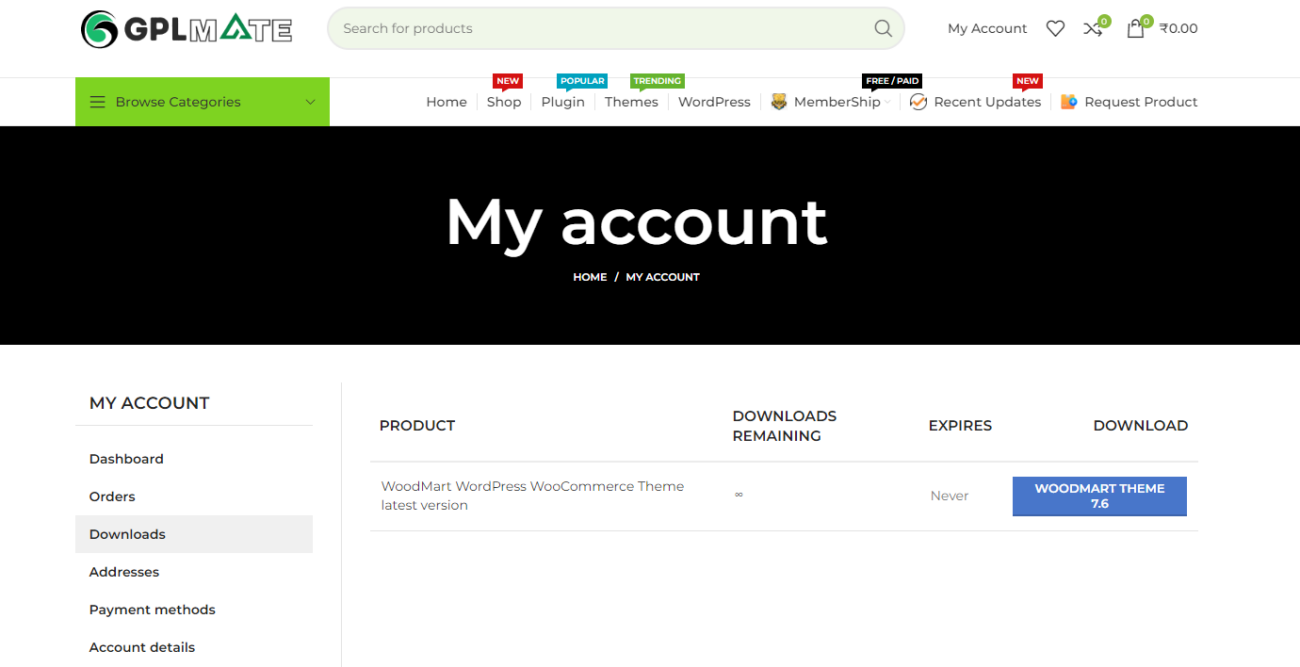
Download the most recent version from your our site - my account page.
Go to WordPress -Appearance -> Themes -> Add new
Click on the “Upload theme” button and then choose the theme installable zip file in the form.
Click on “Install now.“
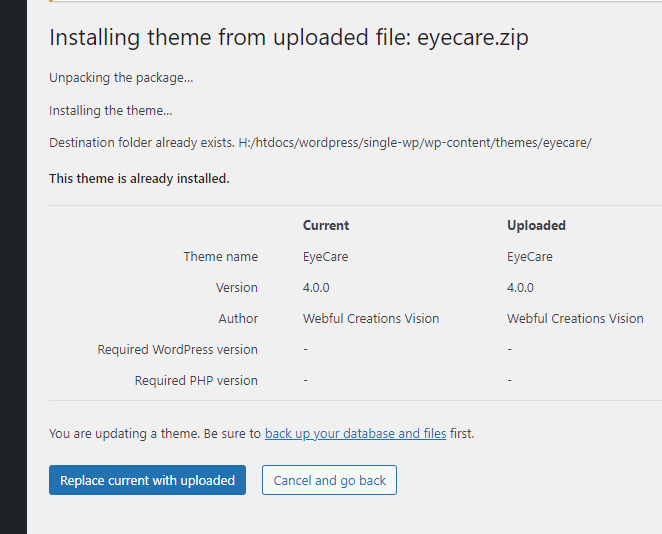
WordPress will show you information about your existing version. Click on the “Replace current with Uploaded” button.
 All Items
 Combo Offer
 WordPress
 Themes
 Plugins
 PrestaShop
 Scripts
 Shopify
 PC Software
 SEO Plugin
 Tools & subscriptions
 WooCommerce
No account yet?
Create an Account